OpenSimWorld is the directory of 3D Virtual Worlds based on OpenSimulator and connected through the HyperGrid. Learn More
New Members
NoStressGrid, Krystal Hide, Jamie, PolliBarsa, NayelisColomer, Zaine, SilasOS, SubayoFriends, CleuBoniVL, Noob Ubinu, CatireBello, Pvausasmm8965, Pvausasmm74, Vlbfree, RiverWild, PimVermeer, BiaANGELS, LukeSant, Seatips55, Dolce MelodyLikes

Weekendstuff at Dinkietown at VWZgrid.
2 new outfits now available.
These outfits will only fit the Open Sim dinkies.
The BOM dinkies use another weight, so they won't fit .
Many outfits are made for Open Sim dinkies, be aware of this.
virtual-worlds.zone:8002: DinkieTown
2 new outfits now available.
These outfits will only fit the Open Sim dinkies.
The BOM dinkies use another weight, so they won't fit .
Many outfits are made for Open Sim dinkies, be aware of this.
virtual-worlds.zone:8002: DinkieTown


New artwork in the gallery
.inspired by Rene Magritte
(2nd floor)
OSGrid | The Art Factory
https://opensimworld.com/hop/83054
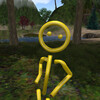
More outdoor holiday decor (or indoor if you shrink them...or...have quite a large room :D).
Some Christmas balls, some plain, some say Happy Holidays or Merry Christmas.
They are out in the Christmas section of the shop. Ho Ho Ho
Some Christmas balls, some plain, some say Happy Holidays or Merry Christmas.
They are out in the Christmas section of the shop. Ho Ho Ho
*NEW RELEASE* MOTO GARAGE GREEDY GAME TABLE* for up to 04 players - Your garage decor will not be the same.... Available for FREE and FULL PERM at GREEDY MUSEUM! Enjoy :)

New Shop added today. The Character Shop featuring both Animesh and Static non animated NPC Bots for your region builds.

New !!!! Leather Pants

New Release at Encantada. It's ready and out at the shop. The Encantada Pergola. It's user friendly and has 4 different set up options and 3 different wood tones.
The touch menu script was provided by my friend Aaack at Arcadia Shop, I'm super grateful for his help on this one.
You're covered in this Pergola, rain or shine day or night :). You can have it just plain, with a canopy, a light or whatever combo you choose.
The touch menu script was provided by my friend Aaack at Arcadia Shop, I'm super grateful for his help on this one.
You're covered in this Pergola, rain or shine day or night :). You can have it just plain, with a canopy, a light or whatever combo you choose.

Want to say Thanks to all here in Open sim......

NEW!!!
Shiny lipstick for bom genus
I'm starting to think about winter now....I was just looking at the frozen white winter bush and thinking there needs to be more winter things, I've got alot of blank spots in that section.
Sometimes, when life gives you lemons, you just want the lemons. They are incredibly useful in the kitchen, they work for cleaning, cooking and drink making. Yes, they taste sour that's what makes them so fabulous! Have them on hand all the time...virtually.
Summer is still here but, eventually, it will be FALL! Pretty trees will be upon us, for a few weeks anyway. The Maples have some fall colour and a few particle falling leaves, ground leaves as well.

Grand Opening of The Furniture Vault in AviWorlds... Come shop !!! High End Items!

Clarification: Illegal Activity
Please do not post evidence of illegal activities here or in your profiles. Report any such evidence directly to the police, where it belongs. Posts will be removed and repeated violations will result in a ban.
I love this shrub in the fall, the colour of red is really amazing. In the summer, it's a mild mannered green shrub but come fall, the fire bush earns it's name.
If you've got water, ponds, swamps or even wet ditches, some bullrushes can come in handy. They come in 3 sizes of groups depending on the amount of space you want to cover. There are also individuals, so they can work in almost any area.

Follow the Dolphin! The updated SFsail boats can now use the autopilot to follow other users, other boats, or anything. Rez our wandering dolphin and say 'follow dolphin' to follow him around.
You will find the SFsail boats package in OpenSimWorld -> hg.osgrid.org:80:OpenSimWorld
Learn more about SFsail here: https://opensimworld.com/sfsail
You will find the SFsail boats package in OpenSimWorld -> hg.osgrid.org:80:OpenSimWorld
Learn more about SFsail here: https://opensimworld.com/sfsail

not sure if anyone will know what this is just by looking at this pic. Or if anyone else will Nerd Out like I did when I found it in my inventory. HOWEVER! Howls Moving Castle *in its original box Now in Vintique Antiques on Steamland.

My RL client received her earrings today. This is the first exclusive RL order. It is such a rewarding experience to first create jewelry but to see it realized in RL has brought tears, it is an overwhelming awesome experience! Thank you to my kind and generous client! It is very much appreciated!


Region teleport system


Tropical Island/Romantic Getaway

Optimized stream, now with shiny and bumpmapping
Venus Flytrap.....been on my list for a long time:)
6 KINDS OF ONE PRIM MODELS OF STREETLAMPS ** All for FREE and FULLPERM at STORE 02 (STREETLAMPS SECTOR) ** Use only one single script (*)!!
(*) if its at same SIM and when streetlamps are linked / script goes to the last streetlamp selected (root prim) // Enjoy :)
(*) if its at same SIM and when streetlamps are linked / script goes to the last streetlamp selected (root prim) // Enjoy :)

We are proud to present you the new Stark! magazine with the famous Nice Minik as photographer and the stunning model Bobbi Coulter. This issue is definately worth coming by at Stark to grab your copy.
You can get your copy of the magazine and vendors at the Stark landing point as usual.
You can get your copy of the magazine and vendors at the Stark landing point as usual.
3 new outfits in Steamland, Zetaworlds. "what a doll", "smokin hot", and "BwB's versatile retro bathingsuit" *sorry its been a while since I have added to the shop, RL has gotten chaotic :) Hope you enjoy.
New Shop I am Working on. Has the FestAvi items I have collected over the years (Yes I have gotten permission to put them there). More to come but Check it out.


Hello New Avatar [Male Dragon Quadrupe]
The new four-legged Dragon avatar is now available, if you have any questions you can use the box of restraints and I will read the problems A greeting, For next week the same avatar will be but a Female! Thank you
The new four-legged Dragon avatar is now available, if you have any questions you can use the box of restraints and I will read the problems A greeting, For next week the same avatar will be but a Female! Thank you
Wir, als Besitzer des Soul Grids sind entsetzt und geschockt von den Vorfällen in Amerika . Dies ist keine Demokratie mehr !
We, as owners of the Soul Grid, are horrified and shocked by the events in America. This is no longer a Democracy
Nasti and Rudi Bakerly
#BlackOutThuesday
We, as owners of the Soul Grid, are horrified and shocked by the events in America. This is no longer a Democracy
Nasti and Rudi Bakerly
#BlackOutThuesday
The new Stark! magazine is out now!
Get your copy of the magazine and/or vendor from the Stark landing point.
The new vendors now have magazines with a new script version without OSSL modified by the wonderful Typhaine Artez. Thank you very much, Typhaine!
Get your updated vendor on the landing point at Stark!
Due to the move from Kitely to Zeta Worlds, I am a little late with the March edition. However, it will be delivered shortly. Promised!
See you!
Mathilda
Get your updated vendor on the landing point at Stark!
Due to the move from Kitely to Zeta Worlds, I am a little late with the March edition. However, it will be delivered shortly. Promised!
See you!
Mathilda
New Products Thanks to Amber my daughter !!
Garden streelamps - 1 prim mesh models available for FREE and FULL PERM at GARDEN AREA, BOX 06. Use a single script to control them all! Super easy!
Steampunk Dandy, In Steamland. What a dapper gentleman!


Creating an Original OpenSimulator Character
A Simple Guide to ChatGPT, Tripo, and Ferd Frederix's New Mesh Uploader
Creating original 3D characters for OpenSimulator has become much easier. With ChatGPT for reference artwork, Tripo for 3D model creation and rigging, and Ferd Frederix's new GLTF/DAE/FBX Mesh Uploader, you can bring your creations into OpenSimulator without manually rigging them in Blender or Avastar.
This tutorial walks through the process, from your first character idea to seeing your creation in-world.
What You'll Need
- ChatGPT — To create your character reference image.
- Tripo — To turn your image into a 3D model, rig it, and preview animations.
- Fred's Mesh Uploader — To import your finished model into OpenSimulator.
- An OpenSimulator viewer — To inspect and test your creation.
You will also need access to a DreamGrid installation with the uploader enabled, either through its desktop interface or through authorized web uploading.
Step 1: Create Your Character in ChatGPT
Every character starts with an idea!
You might create a fantasy creature, a holiday character, a cartoon animal, or something entirely original.
For characters you intend to rig, the reference image is particularly important.
Ask ChatGPT to create a full-body character in a T-pose, facing directly forward.
Suggested ChatGPT prompt:
"Create an original full-body 3D character reference image, facing directly forward in a true T-pose. Arms extended horizontally, fingers separated, legs slightly apart with a clear gap between them, and both feet fully visible. Use a plain gray background. No props, scenery, text, or clothing connecting the legs."
A clean image helps Tripo distinguish the character's limbs and body proportions.
Tip: Avoid long skirts, hanging fabric, complicated accessories, and overlapping body parts. These can interfere with automatic rigging.
Step 2: Create Your 3D Model in Tripo
Once you are happy with your reference image:
Open Tripo and select its Image to 3D workflow.
Upload your ChatGPT character image.
Generate the 3D model.
Examine the character from several angles.
Check that the arms, hands, legs, and feet are properly separated.
If something looks wrong, correct the reference image and generate another model.
Do not rush into rigging a model with fused limbs or badly distorted geometry. Fixing the source is usually easier than trying to repair the finished result.
Step 3: Rig Your Character in Tripo
This is where your character comes to life!
Tripo provides automatic rigging capabilities for supported character models.
Open your generated model.
Select the available rigging or animation workflow.
Apply automatic rigging.
Preview an available animation.
Watch the shoulders, elbows, hands, hips, knees, and feet.
Look for unnatural bending, stretching, or distortion.
If the rigging is unsuccessful, try regenerating a cleaner model.
For wearable OpenSimulator characters, preserve a proper T-pose as the rig's reference pose. An action pose is not a suitable substitute.
Important: Tripo's interface and available features may change over time.
Step 4: Export Your Character as an FBX ZIP
Once your model is ready, use Tripo's FBX export option.
Select the appropriate FBX export.
Download the exported model and associated files.
Keep the supplied ZIP package intact, including any textures or supporting files.
Save a backup of your original character image and Tripo project.
For this tutorial, we use an FBX ZIP because Fred's uploader supports FBX files, including rigged characters, and ZIP packages containing models and their textures.
A static GLB and a rigged FBX are not interchangeable for every intended use. Choose the export that preserves the data you need.
Step 5: Open Fred's GLTF/DAE/FBX Mesh Uploader
Fred Frederix has developed a Mesh Uploader that can import several popular 3D formats directly into an OpenSimulator region.
Supported formats include:
- DAE (Collada)
- FBX
- GLTF
- GLB
- ZIP packages containing supported models and textures
For grid administrators using DreamGrid, open the main DreamGrid window, choose Content, and select Load DAE, GLB, GLTF, FBX.
The uploader opens with options to select your model, preview it, adjust scale, and choose its destination.
Select your FBX ZIP package using the file browser.
Preview your model before uploading. This can help you catch missing textures, incorrect sizing, and other problems.
Step 6: Choose Object, Clothing, or Avatar
Fred's uploader supports different kinds of mesh imports.
Object: Use this for decorative characters, statues, props, furniture, and other in-world objects. With both wearable options unchecked, an FBX armature is ignored and the model imports in its saved pose.
Clothing: Use this for supported rigged attachments intended to follow an avatar's movements.
Avatar: Use this for a complete wearable character body. The uploader can process supported rigs, skin weights, and joint positions for OpenSimulator.
For wearable characters, the uploader's automatic skeleton conversion requires a working Python installation on the DreamGrid computer. The Clothing and Avatar options will be unavailable if Python is not detected.
The model must also have a suitable armature and T-pose. Automatic conversion cannot guarantee that every unusual character or rig will work perfectly.
Note about animation: Importing a rigged model is not the same as importing and playing its original Tripo animation. A wearable character uses the OpenSimulator avatar animation system. Test animation behavior separately rather than assuming every animation embedded in an FBX will play in-world.
Step 7: Build and Load Your Character
In Fred's uploader:
Choose the source model or ZIP package.
Examine the model preview.
Adjust the scale if necessary.
Select a running destination region.
Set the desired placement coordinates, or use the online-avatar placement option.
Select the appropriate wearable option if needed.
Click Build & Load.
The uploader processes the model and builds an OpenSim Archive (OAR) behind the scenes, then loads the model into the chosen region.
When using avatar-based placement, the object can appear approximately two meters in front of your avatar.
Watch the uploader's status window for errors or warnings.
Step 8: Test Your Character in OpenSimulator
Once your character appears in-world, inspect it carefully.
For decorative objects, check the size, textures, orientation, geometry, and placement.
For wearable characters, right-click the imported object and select Take. Find it in your inventory and wear it.
Test several ordinary avatar animations to see whether the character bends and moves correctly.
Check the arms, knees, feet, and overall proportions. Some characters may require additional adjustments.
Before sharing your creation, also check permissions, texture quality, and rendering performance.
Tips for Better Results
Start simple. Characters with clean proportions and separated limbs are easier to rig.
Keep your models efficient. Highly detailed geometry can increase rendering costs and cause upload problems. Fred's uploader enforces a maximum of 65,535 vertices per material section.
Keep textures with the model. A ZIP package helps prevent supporting files from getting separated.
Use a proper T-pose for wearable characters. This is essential for correct avatar animation behavior.
Test before distributing. What looks good in Tripo may need adjustment once imported into OpenSimulator.
The Complete Workflow
Character idea → ChatGPT reference image → Tripo 3D generation → Tripo rigging → FBX ZIP export → Fred's Mesh Uploader → OpenSimulator testing
No manual Blender rigging. No Avastar workflow. Just a much more direct way to create and import original characters.
Thank You, Ferd!
This new uploader has saved an enormous amount of time in my creative workflow.
Instead of manually building and rigging characters through several different programs, I can create a character, generate and rig it in Tripo, export the FBX package, and bring the result into OpenSimulator using Fred's GUI.
Seeing something I imagined become a 3D character standing in-world is still a wonderful experience.
Thank you, Fred, for continuing to develop tools that make creating in OpenSimulator easier and more accessible to everyone!
Official documentation: https://outworldz.com/Outworldz_installer/Help/Mesh%20Uplo...
Tutorial note: The exact results depend on the model, its rigging, the chosen import mode, and the DreamGrid version. This guide covers mesh import and wearable character testing; it does not guarantee automatic playback of Tripo's exported animations.
If you need help please feel free to IM u/MariannaMonentes Thank you Adrian Moon for reaching out asking for a tutorial.
A Simple Guide to ChatGPT, Tripo, and Ferd Frederix's New Mesh Uploader
Creating original 3D characters for OpenSimulator has become much easier. With ChatGPT for reference artwork, Tripo for 3D model creation and rigging, and Ferd Frederix's new GLTF/DAE/FBX Mesh Uploader, you can bring your creations into OpenSimulator without manually rigging them in Blender or Avastar.
This tutorial walks through the process, from your first character idea to seeing your creation in-world.
What You'll Need
- ChatGPT — To create your character reference image.
- Tripo — To turn your image into a 3D model, rig it, and preview animations.
- Fred's Mesh Uploader — To import your finished model into OpenSimulator.
- An OpenSimulator viewer — To inspect and test your creation.
You will also need access to a DreamGrid installation with the uploader enabled, either through its desktop interface or through authorized web uploading.
Step 1: Create Your Character in ChatGPT
Every character starts with an idea!
You might create a fantasy creature, a holiday character, a cartoon animal, or something entirely original.
For characters you intend to rig, the reference image is particularly important.
Ask ChatGPT to create a full-body character in a T-pose, facing directly forward.
Suggested ChatGPT prompt:
"Create an original full-body 3D character reference image, facing directly forward in a true T-pose. Arms extended horizontally, fingers separated, legs slightly apart with a clear gap between them, and both feet fully visible. Use a plain gray background. No props, scenery, text, or clothing connecting the legs."
A clean image helps Tripo distinguish the character's limbs and body proportions.
Tip: Avoid long skirts, hanging fabric, complicated accessories, and overlapping body parts. These can interfere with automatic rigging.
Step 2: Create Your 3D Model in Tripo
Once you are happy with your reference image:
Open Tripo and select its Image to 3D workflow.
Upload your ChatGPT character image.
Generate the 3D model.
Examine the character from several angles.
Check that the arms, hands, legs, and feet are properly separated.
If something looks wrong, correct the reference image and generate another model.
Do not rush into rigging a model with fused limbs or badly distorted geometry. Fixing the source is usually easier than trying to repair the finished result.
Step 3: Rig Your Character in Tripo
This is where your character comes to life!
Tripo provides automatic rigging capabilities for supported character models.
Open your generated model.
Select the available rigging or animation workflow.
Apply automatic rigging.
Preview an available animation.
Watch the shoulders, elbows, hands, hips, knees, and feet.
Look for unnatural bending, stretching, or distortion.
If the rigging is unsuccessful, try regenerating a cleaner model.
For wearable OpenSimulator characters, preserve a proper T-pose as the rig's reference pose. An action pose is not a suitable substitute.
Important: Tripo's interface and available features may change over time.
Step 4: Export Your Character as an FBX ZIP
Once your model is ready, use Tripo's FBX export option.
Select the appropriate FBX export.
Download the exported model and associated files.
Keep the supplied ZIP package intact, including any textures or supporting files.
Save a backup of your original character image and Tripo project.
For this tutorial, we use an FBX ZIP because Fred's uploader supports FBX files, including rigged characters, and ZIP packages containing models and their textures.
A static GLB and a rigged FBX are not interchangeable for every intended use. Choose the export that preserves the data you need.
Step 5: Open Fred's GLTF/DAE/FBX Mesh Uploader
Fred Frederix has developed a Mesh Uploader that can import several popular 3D formats directly into an OpenSimulator region.
Supported formats include:
- DAE (Collada)
- FBX
- GLTF
- GLB
- ZIP packages containing supported models and textures
For grid administrators using DreamGrid, open the main DreamGrid window, choose Content, and select Load DAE, GLB, GLTF, FBX.
The uploader opens with options to select your model, preview it, adjust scale, and choose its destination.
Select your FBX ZIP package using the file browser.
Preview your model before uploading. This can help you catch missing textures, incorrect sizing, and other problems.
Step 6: Choose Object, Clothing, or Avatar
Fred's uploader supports different kinds of mesh imports.
Object: Use this for decorative characters, statues, props, furniture, and other in-world objects. With both wearable options unchecked, an FBX armature is ignored and the model imports in its saved pose.
Clothing: Use this for supported rigged attachments intended to follow an avatar's movements.
Avatar: Use this for a complete wearable character body. The uploader can process supported rigs, skin weights, and joint positions for OpenSimulator.
For wearable characters, the uploader's automatic skeleton conversion requires a working Python installation on the DreamGrid computer. The Clothing and Avatar options will be unavailable if Python is not detected.
The model must also have a suitable armature and T-pose. Automatic conversion cannot guarantee that every unusual character or rig will work perfectly.
Note about animation: Importing a rigged model is not the same as importing and playing its original Tripo animation. A wearable character uses the OpenSimulator avatar animation system. Test animation behavior separately rather than assuming every animation embedded in an FBX will play in-world.
Step 7: Build and Load Your Character
In Fred's uploader:
Choose the source model or ZIP package.
Examine the model preview.
Adjust the scale if necessary.
Select a running destination region.
Set the desired placement coordinates, or use the online-avatar placement option.
Select the appropriate wearable option if needed.
Click Build & Load.
The uploader processes the model and builds an OpenSim Archive (OAR) behind the scenes, then loads the model into the chosen region.
When using avatar-based placement, the object can appear approximately two meters in front of your avatar.
Watch the uploader's status window for errors or warnings.
Step 8: Test Your Character in OpenSimulator
Once your character appears in-world, inspect it carefully.
For decorative objects, check the size, textures, orientation, geometry, and placement.
For wearable characters, right-click the imported object and select Take. Find it in your inventory and wear it.
Test several ordinary avatar animations to see whether the character bends and moves correctly.
Check the arms, knees, feet, and overall proportions. Some characters may require additional adjustments.
Before sharing your creation, also check permissions, texture quality, and rendering performance.
Tips for Better Results
Start simple. Characters with clean proportions and separated limbs are easier to rig.
Keep your models efficient. Highly detailed geometry can increase rendering costs and cause upload problems. Fred's uploader enforces a maximum of 65,535 vertices per material section.
Keep textures with the model. A ZIP package helps prevent supporting files from getting separated.
Use a proper T-pose for wearable characters. This is essential for correct avatar animation behavior.
Test before distributing. What looks good in Tripo may need adjustment once imported into OpenSimulator.
The Complete Workflow
Character idea → ChatGPT reference image → Tripo 3D generation → Tripo rigging → FBX ZIP export → Fred's Mesh Uploader → OpenSimulator testing
No manual Blender rigging. No Avastar workflow. Just a much more direct way to create and import original characters.
Thank You, Ferd!
This new uploader has saved an enormous amount of time in my creative workflow.
Instead of manually building and rigging characters through several different programs, I can create a character, generate and rig it in Tripo, export the FBX package, and bring the result into OpenSimulator using Fred's GUI.
Seeing something I imagined become a 3D character standing in-world is still a wonderful experience.
Thank you, Fred, for continuing to develop tools that make creating in OpenSimulator easier and more accessible to everyone!
Official documentation: https://outworldz.com/Outworldz_installer/Help/Mesh%20Uplo...
Tutorial note: The exact results depend on the model, its rigging, the chosen import mode, and the DreamGrid version. This guide covers mesh import and wearable character testing; it does not guarantee automatic playback of Tripo's exported animations.
If you need help please feel free to IM u/MariannaMonentes Thank you Adrian Moon for reaching out asking for a tutorial.
 | GAY_ASIA: Das Problem ist hierbei schon ChatGPT. Die Bilderstellung für Avatare, die man ggf. dann auch umkleiden könnte, scheitert schon im Ansatz. ChatGPT Es tut uns leid, aber das von uns erstellte Bild ve... 14 hours ago |


|
Adultalicous Fantasies
1 members |

|
HyperGrid LIVE Music Venues
1 members |

|
Blender Group
35 members |

|
OSGrid Furry Continent
2 members |

|
Wolf Territories Grid
5 members |

|
Virtual Life Info Group
2 members |

|
Virtualife italian grid
2 members |

|
OpenSim Scripters
60 members |

|
Ruth and Roth
15 members |